
Is your ABM strategy stuck at "we turned the tool on"? Activating HubSpot's target accounts feature gets you a dashboard and a few default properties, but on its own it doesn't personalise your content, tier your outreach, or tell you whether any of it moved the needle. The real seamless ABM experience comes from connecting HubSpot's native ABM properties to the rest of Marketing Hub - smart content, workflows, custom reporting, and ad audiences - so target accounts get a genuinely different experience, and you can prove it worked. This hack walks through exactly how to put it all together.
Top tip: build your ABM tier into a company property before you build anything else. Every workflow, smart content rule, and report in this hack branches off a single "ABM tier" property (e.g. Tier 1/2/3) - set that up first and everything downstream gets far easier to maintain.
- Activate ABM tools and set your foundation properties.
- Turn on target accounts under Contacts > Target Accounts if you haven't already - HubSpot's own setup guide covers this activation step in full, so we won't repeat it here.
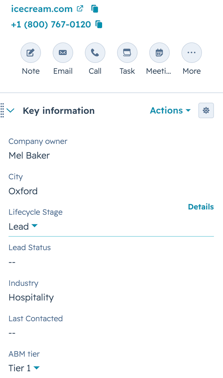
- Add one custom company property, ABM tier, alongside the default buying role and target account properties. This is the property the rest of this hack hangs off. Settings > Properties > Company properties > Create property > Add ABM tier 1, 2 & 3
- ABM tier property setup on the company record below
- Build segments that go beyond the default ones.
- HubSpot auto - creates segments for each buying role once ABM is active. Layer your own on top: one per ABM tier, and one for "target accounts with no marketing engagement in 30 days" - this becomes your at-risk list.
- Use these segments as the audience source for everything in steps 3 to 5, rather than building fresh lists each time.
- Personalise with smart content, not just email.
- Use your ABM tier segments to drive smart content rules on key landing pages and pillar pages, not only in emails - a Tier 1 prospect landing on your pricing page should see different proof points to a cold inbound lead.
- Keep the personalised variant to one or two elements (a hero banner or a case study block) rather than rebuilding the whole page - over-personalising slows load time and maintenance for marginal gain. Personalise the key elements only.
- Build a tiered nurture workflow, not one generic ABM workflow.
- Branch your workflow at the enrolment trigger using the ABM tier property, so Tier 1 accounts get a faster cadence with sales tasks inserted, while Tier 3 accounts get a lighter-touch nurture. The aim is to really target those hot Tier 1 accounts and to ensure sales are aware of them.
- Branch your workflow at the enrolment trigger using the ABM tier property, so Tier 1 accounts get a faster cadence with sales tasks inserted, while Tier 3 accounts get a lighter-touch nurture. The aim is to really target those hot Tier 1 accounts and to ensure sales are aware of them.
- Extend your target account segments into ad audiences.
- Sync your ABM tier segments to LinkedIn and Google ad audiences directly from HubSpot, so paid spend follows the same tiering logic as your organic nurture rather than running as a separate campaign.
- Track results with a custom report, not just the native ABM dashboard.
- The built - in ABM dashboard shows account engagement, but it won't show you influenced pipeline by tier. Build a custom report (or a report in a dashboard) that pairs deal amount and stage with the ABM tier property, so you can see whether Tier 1 investment is actually converting faster than Tier 3.
- Add an engagement velocity metric - time from first target-account touch to first sales meeting - split by tier. This is usually the number that tells you if the "seamless" part of ABM is actually working.
Common mistake to avoid: Teams switch on the native ABM tool, get the dashboard and the default segments, and stop there - treating the out-of-the-box setup as the finished strategy rather than the starting point. The dashboard tells you who's engaging; it doesn't personalise anything or prove ROI on its own. That only happens once you connect it to workflows, smart content, and a custom report, as above.
Get this right, and ABM stops feeling like a separate initiative bolted onto your CRM - it becomes the way your highest-value accounts naturally experience your marketing, with a report that can tell you, in pounds and days, whether it's working.
FAQs
Do I need HubSpot Enterprise to build this kind of ABM setup?
No - the native ABM tools and the features in this hack (workflows, smart content, custom reporting) are available from Marketing Hub Professional or Sales Hub Professional upwards. Certain smart content options and advanced reporting features may be Enterprise-only; check your specific tier before committing to a build. (Tier/pricing claim — confirm before publishing.)
What's the difference between the native ABM dashboard and the custom report in this hack?
The native ABM dashboard shows account-level engagement - who's interacting and how often. The custom report in this hack pairs that with pipeline data (deal stage, value) and a time-to-meeting metric, so you can see commercial impact by tier, not just activity.
Can I run this without syncing to ad platforms?
Yes - steps 1 to 4 and 6 work entirely within HubSpot without any ad platform connection. Step 5 (ad audience sync) is an optional extension for teams already running paid alongside ABM.
Is this better than just using HubSpot's out-of-the-box ABM tool as-is?
The native tool gives you the properties, segments, and dashboard, but it doesn't personalise content or connect engagement to pipeline results on its own. This hack builds on top of it rather than replacing it - you still need the native tool activated first.
What's the most common reason this kind of ABM build falls over after launch?
D Usually it's the ABM tier property not being kept current — accounts get added but never re-tiered as they progress, so workflows and smart content start showing stale segmentation. Assigning an owner for a monthly tier review avoids this.