The Hack: A Proactive "Stale Contact" Alert System
Instead of cleaning up the mess later, build a system that warns you 3 months before contacts go cold—so you can re-engage them while there's still time.
Phase 1: Create Your "Staleness" Criteria Property
First, we need a way to track and flag potentially stale contacts.
Steps:
- Navigate to Properties
- Click Settings (⚙️) > Data Management > Properties
- Click Create property
- Object type: Contact
- Group: Contact Information
- Label:
Risk of Going Stale - Field type: Single checkbox
- Click CreateCreate New Property
Phase 2: Build the "Early Warning" Workflow
This workflow monitors engagement and flags contacts before they hit 12 months of inactivity.
Steps:
- Create the Workflow
- Go to Automation > Workflows
- Click Create workflow > From scratch
- Choose Contact-based workflow
- Set Enrollment Triggers (The "9-Month Check")
- Click Set enrollment triggers
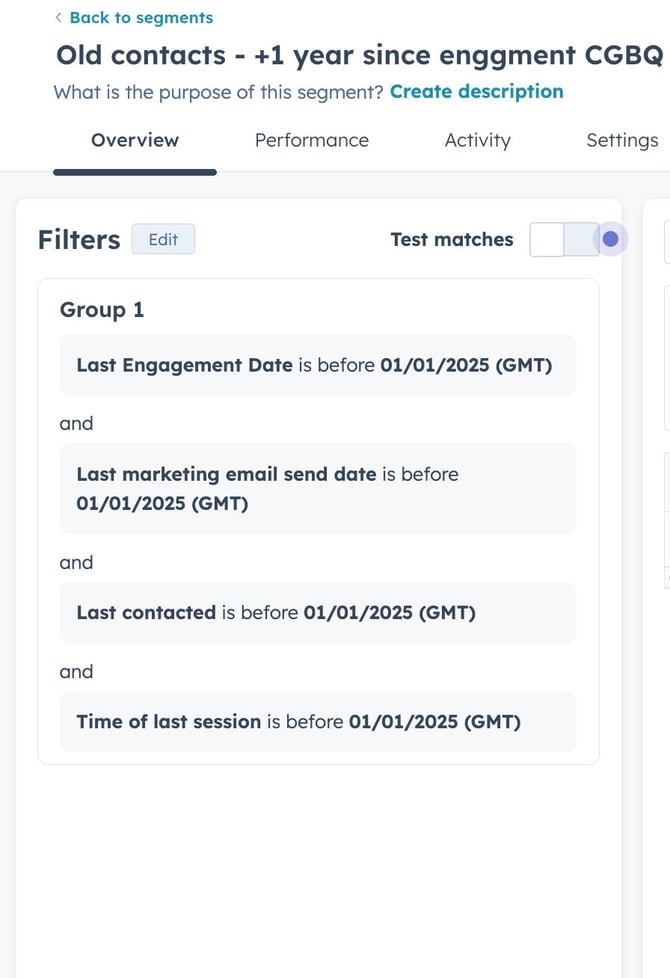
- Add these filters with AND logic:
Filter 2: Last marketing email send date is more than 270 days ago
Filter 3: Last contacted is more than 270 days ago
Filter 4: Time of last session is more than 270 days ago (270 days = 9 months—your 3-month early warning)
- Add Exclusion Filters (Optional but Smart)
- Contact Owner is known (only flag contacts someone owns)
- Email is known (skip contacts without emails)
- Contact Status is not "Unqualified" or "Closed" (focus on active contacts)
- Configure Re-enrollment
- Click the Re-enrollment tab
- Check: "Unenroll and re-enroll contacts when they meet the enrollment criteria again"
- Why: If someone re-engages and then goes quiet again, they'll get flagged again
- Add Action 1: Flag the Contact
- Click + in the workflow
- Select Set property value
- Property:
Risk of Going Stale - Value: Checked (Yes)
- Add Action 2: Create a Task for the Owner
-
- Click +
- Select Create task
- Task title:
🚨 Contact at risk of going stale - Assign to: Contact owner
- Priority: Medium
- Due date: In 7 days
- Notes (use personalisation tokens):
-
   {firstname} {lastname} ({email}) hasn't engaged in 9 months.

   Last engagement: {last_engagement_date}
   Last contacted: {notes_last_contacted}
   Last email: {recent_conversion_date}

   → Review if this contact is still valid
   → Re-engage or archive
→ Update their record accordingly 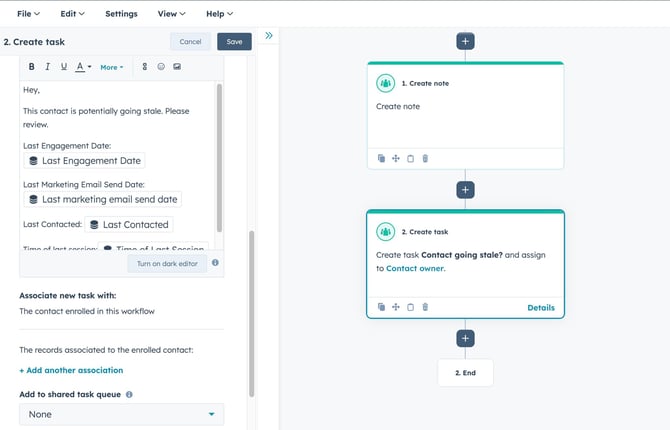
7. Add Action 3: Send Internal Notification (Optional)
-
- Click +
- Select Send internal email notification
- Send to: Contact owner
- Subject:
Contact going stale: {firstname} {lastname} - Body: Include the same details as the task
8. Review & Turn On- Click Review
- Verify your 270-day thresholds and task details
- Click Turn on
Phase 3: Build the "Stale Contact Cleanup" List
Now create a list to track all flagged contacts in one place.
Steps:
- Create an Active List
- Go to Contacts > Lists
- Click Create list > Contact-based > Active list
- Name:
🧊 At Risk of Going Stale (9+ Months)
- Add Filters
- Risk of Going Stale is Yes (checked)
- Contact Owner is known (optional—focuses on owned contacts)
- Save the List
- Bonus: Create a "Fully Stale" List
- Create another list:
❄️ Fully Stale (12+ Months) - Filters:
- Last engagement date is more than 365 days ago
- Last marketing email send date is more than 365 days ago
- Last contacted is more than 365 days ago
- Time of last session is more than 365 days ago
- Create another list:
Phase 4: Build the Cleanup Playbook (What SDRs Do Next)
Now that contacts are flagged, give your team a clear process.
Option A: Re-Engagement Sprint (Proactive)
For the "At Risk" list (9 months):
- SDR reaches out with a value-driven touchpoint:
- "Hey [Name], haven't heard from you in a while. Wanted to share [relevant resource]..."
- Or: "Quick check-in—are you still the right person for [topic]?"
- Based on response:
- Engaged: Uncheck
Risk of Going Stale, log activity, continue nurture - No response: Let them hit the 12-month mark, then archive
- Wrong person: Update contact owner or mark as unqualified
- Engaged: Uncheck
Option B: Bulk Archive (Reactive)
For the "Fully Stale" list (12+ months):
- Export the list
- Review with sales leadership
- Bulk update:
- Set Contact Status to "Archived" or "Inactive"
- Or delete entirely (if compliant with data retention policies)
Phase 5: Automate the Cleanup (Advanced)
Take it one step further: automatically archive contacts who ignore the warning.
Steps:
- Create a Second Workflow
- Name:
Auto-Archive Fully Stale Contacts - Trigger: Contact-based
- Name:
- Enrollment Criteria
- Risk of Going Stale is Yes (checked)
- Date set for "Risk of Going Stale" is more than 90 days ago (they've been flagged for 3 months)
- Last engagement date is still more than 365 days ago
- Add Action: Update Contact Status
- Set property value
- Property: Contact Status
- Value: "Archived" or "Inactive"
- Add Action: Uncheck the Flag
- Set property value
- Property:
Risk of Going Stale - Value: Unchecked (No)
- Turn On
Troubleshooting
Too many contacts getting flagged?
- Your thresholds might be too aggressive—adjust to 12 months instead of 9
- Add exclusion filters for certain contact types
Tasks not being created?
- Verify contacts have owners assigned
- Check that the contact owner has task permissions
Workflow not enrolling anyone?
- Use OR logic instead of AND if you want to catch contacts who meet any criteria (more aggressive)
- Lower the day threshold to test (e.g., 30 days) and see if contacts enroll
The Bottom Line
Good data hygiene isn't glamorous, but it's one of the highest ROI activities you can do in your CRM. This hack turns cleanup from a quarterly nightmare into an automated, proactive process.
Set it up once. Let it run forever. Keep your data clean automatically.