The Solution: A "Stamping Workflow". We'll create a custom property that captures the last active stage before a deal closes. This property updates every time a deal moves forward, but stops updating when the deal is marked as Won or Lost—preserving that critical data forever.
Phase 1: Create the Custom Property (The Container)
This property will store your historical "last active stage" data.
Steps:
- Navigate to Properties
- Click the Settings icon (⚙️) in the top right
- In the left sidebar, go to Data Management > Properties
- Create New Property
- Click Create property (top right)
- Select Deal as the object type
- Configure the Property
- Group: Deal Information
- Label:
Last Active Stage - Field Type: Choose one option:
- Single-line text (Recommended) — More flexible, works with multiple pipelines
- Dropdown select — Better for reporting/charts, but requires exact stage matching
- If Using Dropdown (Optional but Advanced):
- Click Add options
- Manually add every stage from your pipeline(s) exactly as they appear
- Critical: The internal values must match your actual Deal Stage values exactly (case-sensitive)
- If you have multiple pipelines with different stages, single-line text is safer
- Click Create
Phase 2: Build the Workflow (The Engine)
This workflow "listens" for deal stage changes and stamps your property—but only when the deal is still active.
Steps:
- Create the Workflow
- Go to Automation > Workflows
- Click Create workflow (top right)
- Select From scratch
- Choose Deal-based workflow
- Set the Enrollment Trigger
- Click Set enrollment triggers
- Add filter: Deal Stage > is known
- This ensures the workflow can evaluate any deal with a stage
- Configure Re-enrollment (Critical Step)
- Click the Re-enrollment tab at the top
- Check the box: "Re-enroll records when a filter criterion is met"
- In the dropdown, select Deal Stage
- Why this matters: Without this, the workflow only runs once. With it, the workflow runs every time the deal stage changes.
- Add a Safety Filter (If/Then Branch)
- Click the + button in the workflow canvas
- Select If/Then branch
- Branch name:
Is Active Stage?
- Deal Stage > is not any of:
- Closed Lost
- Closed Won
- (Add any other "closed" stage names you use)
- Add the Stamping Action (Yes Branch Only)
- Under the "Yes" branch (deal is still active), click +
- Select action: Set property value
- Choose property:
Last Active Stage(the property you created) - Set value:
- Click Personalisation token
- Select Copy a property value from the enrolled deal
- Choose property: Deal Stage
- Review & Publish
- Click Review (top right)
- Verify your settings:
- Re-enrollment is enabled for Deal Stage
- If/Then branch filters out closed deals
- Property is set only on the "Yes" branch
- Click Turn on to activate the workflow
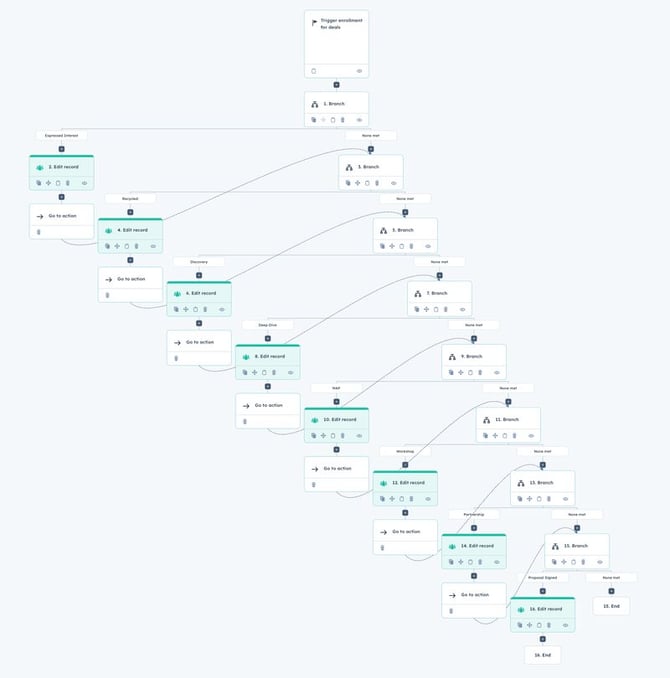
Phase 3: Test the Workflow (Don't Skip This!)
Before relying on the data, verify it works.
Steps:
- Create a Test Deal
- Create a new deal in any active stage (e.g., "Qualified")
- Check the
Last Active Stageproperty, it should now show "Qualified"
- Move the Deal Forward
- Change the deal to the next stage (e.g., "Demo Scheduled")
- Wait 1-2 minutes for the workflow to process
- Check
Last Active Stageit should now show "Demo Scheduled"
- Close the Deal as Lost
- Change the deal stage to "Closed Lost"
- Check
Last Active Stageit should still show "Demo Scheduled" (not "Closed Lost") - If it preserved the last active stage, your workflow is working correctly!
- Clean Up
- Delete your test deal
Phase 4: Build the "Leakage" Report
Now you can finally see where deals are dying.
Steps:
- Create the Report
- Go to Reports > Reports
- Click Create report (top right)
- Select Single object > Deals
- Configure Filters
- Deal Stage: is any of "Closed Lost"
- Create Date: All time (or your preferred date range)
- Last Active Stage: is known (ensures the property has data)
- Set Up Visualisation
- Chart type: Bar chart (or column chart)
- X-axis:
Last Active Stage - Y-axis: Count of Deals
- Analyse the Results
- You'll see a chart showing exactly which stages have the most lost deals
- Example insight: "60 deals died at 'Demo Scheduled', we need to improve demo quality or qualification"
- Save the Report
- Click Save report (top right)
- Name it: "Deal Leakage Analysis" or similar
Important Notes
Historical Data Limitation
This workflow only captures data going forward. Deals that closed before you built this workflow won't have the Last Active Stage populated.
Multiple Pipelines?
If you use multiple pipelines with different stage names:
- Use Single-line text for the custom property (not dropdown)
- Consider creating separate reports filtered by pipeline
Pro Tip: Regular Reviews
Schedule monthly reviews of this report with your sales team to identify patterns and fix bottlenecks.
Troubleshooting
Property not updating?
- Check that re-enrollment is enabled for Deal Stage
- Verify the If/Then branch criteria excludes closed stages
Property shows "Closed Lost"?
- Your If/Then branch isn't working—check that it filters out closed stages on the "No" branch
Dropdown values not matching?
- Switch to Single-line text, or manually verify your dropdown internal values match Deal Stage exactly
You're all set! This workflow will now preserve the last active stage for every deal, giving you the visibility you need to optimise your sales process.