How It Works
When editing your email template:
- Click the “+ Add” icon down the left‑hand side.
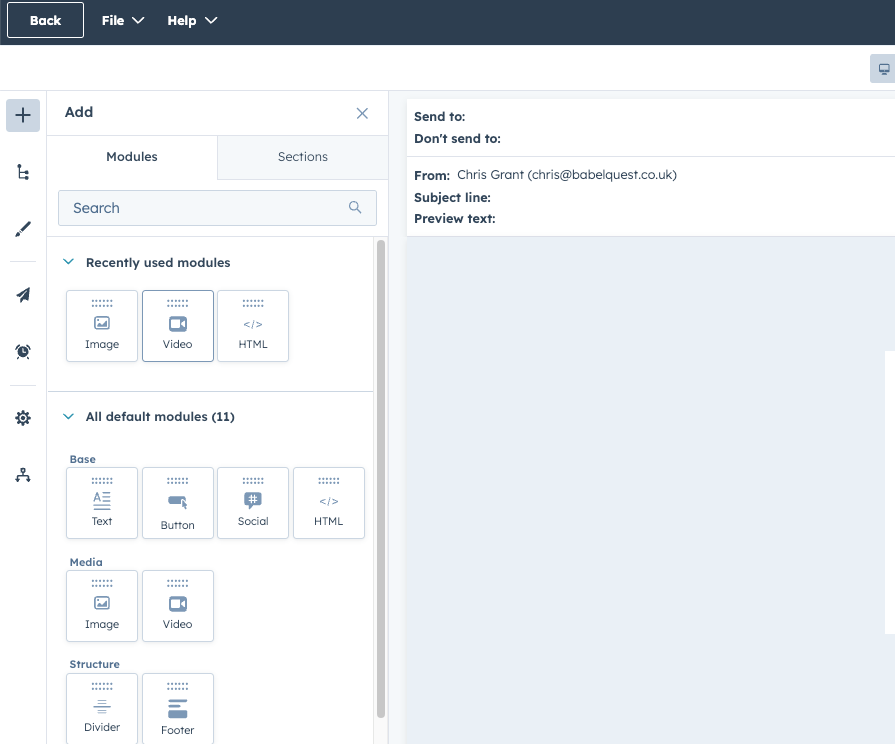
- Select Media and drag a media block into your email.
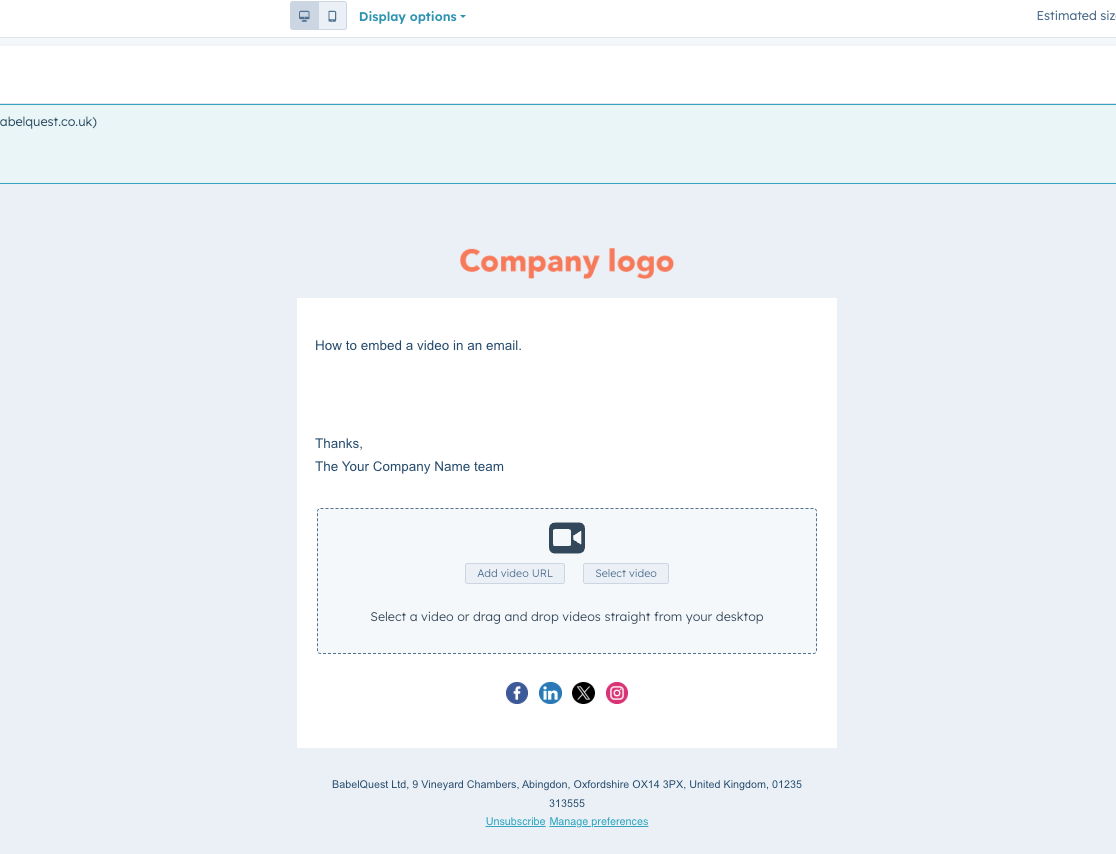
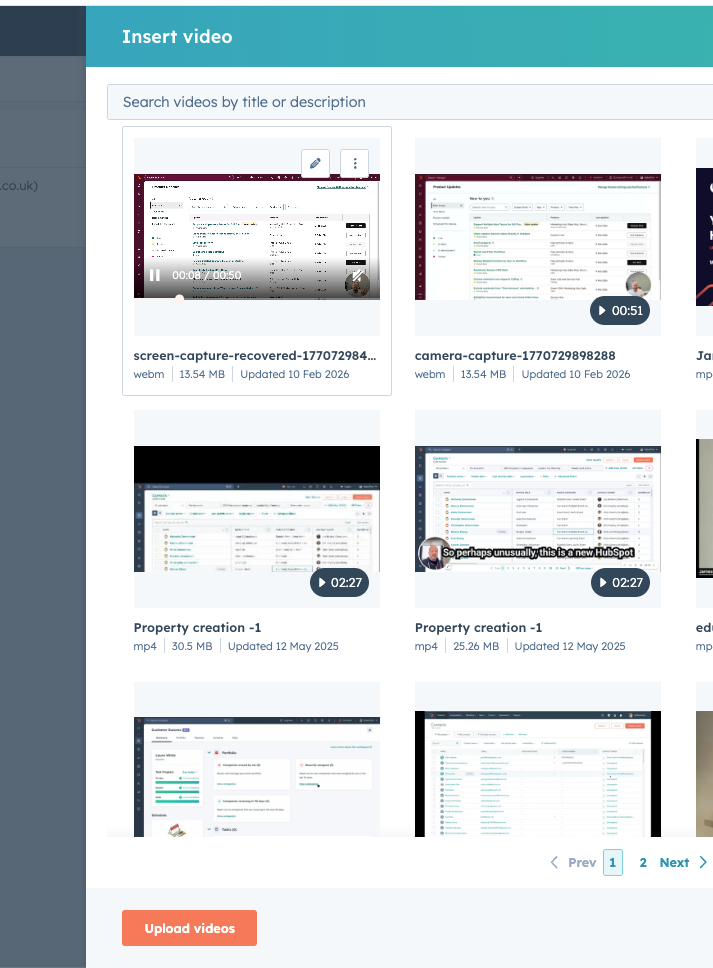
- Insert your video URL — this can be a YouTube link, a Vimeo link or a video hosted inside HubSpot.
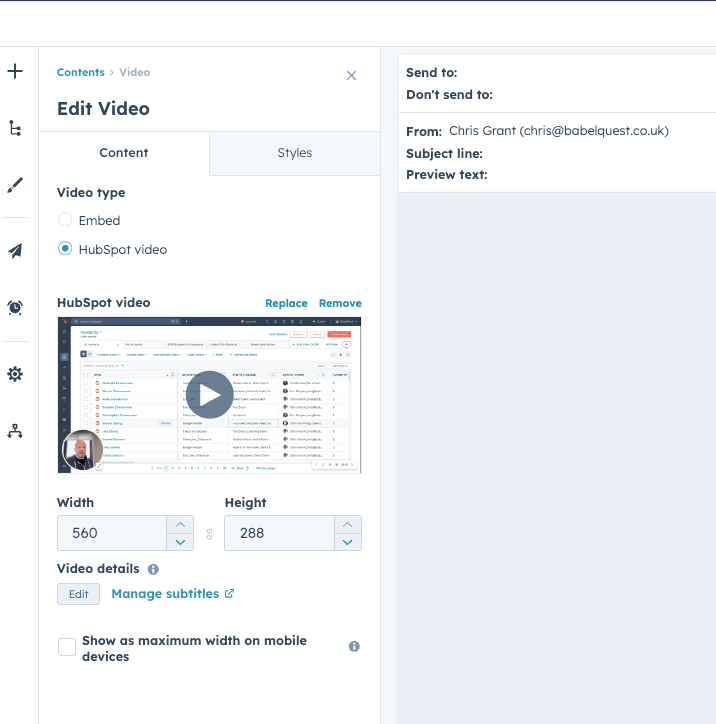
- Adjust width, height and thumbnail settings as needed.
- Preview and send a test email to ensure the layout looks right.
Note: Videos cannot play inside the email itself - clicking the play icon will open the video in a new browser tab.
Best Practice Tips
- Use videos when the video itself is the main call to action (e.g. watch this product explainer, demo or webinar recording).
- If your primary goal is a form conversion, report download or event registration, be cautious - some recipients may click away to watch the video and not return to complete the main CTA.
- Customise the thumbnail and size so it stands out without overpowering your core message.
Adding videos to your email gives users richer content and can improve engagement - just make sure the visitor journey is clear and friction‑free.