When you let users choose from a dropdown of friendly-looking dates (e.g., “8th September 2026”), it improves usability and avoids mis-typed dates. But a plain dropdown doesn’t behave like a date field - so you can’t leverage native date-based automation, segmentation, or reporting.
By using the dropdown’s internal value as a Unix timestamp - and a custom-coded workflow to copy that timestamp into a real HubSpot date field - you get the best of both worlds:
-
Friendly, human-readable options for users.
-
A “real” date in HubSpot for automation, segmentation, and reporting.
How it works (overview)
-
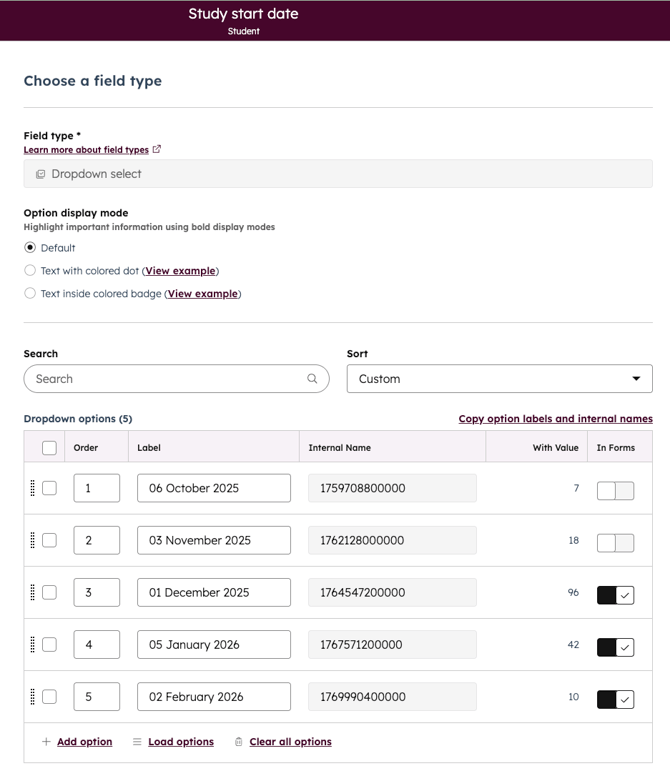
Create a dropdown property (Course Start Date (Friendly)) with labels like “8th September 2026” and internal values as Unix timestamps - HubSpot will require a 13-digit timestamp for this method to work:
-
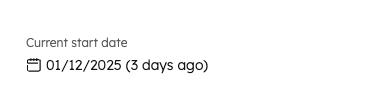
Create a date property (Course Start Date (Date)) to store the actual date - I like to select the 'Show date with relative time' option for this property:
-
Use a custom-coded workflow to read the timestamp from the dropdown and populate the date property.
-
Once set, you can use the date field for:
-
Triggering follow-ups or reminders
-
Filtering/segmenting contacts or deals
-
Reporting on upcoming dates or forecasting
-
Example scenario: Course signup
| Property | Example options & internal values |
|---|---|
| Course Start Date (Friendly) | “8th September 2026” → 1767888000000“1st October 2026” → 1769932800000 |
| Course Start Date (Date) | Populated by workflow from internal value |
Flow: User selects a date → workflow reads timestamp → sets the real date property → automation and reporting are now possible.
Pros & considerations
Pros:
-
Great UX - users select a friendly date
-
Enables robust automation and reporting
-
Eliminates ambiguity in date entry
Considerations:
-
Timestamps must be accurate (midnight UTC)
-
Requires a custom-coded workflow
-
New dropdown options must include proper timestamp values
Next step
Want the exact workflow code to make this work? Unlock it here: