
Phase 1: The Setup
Before opening the automation builder, you need to create the empty "buckets" (Properties) where the AI will save its answers.
- Navigate to Properties: On the left sidebar, go to Data Management > Properties.
- Create 2 New Properties for the Company object:
- Property 1 (For the Summary):
- Object: Company
- Label: AI Research Summary
- Field type: Multi-line text
- Property 2 (For the Segment):
- Object: Company
- Label: AI Segment
- Field type: Dropdown select
- Options: Add exactly these three options: SMB, Enterprise, Startup. (Note: The options must match the AI prompt exactly.)
Phase 2: Build the Workflow
- Create a Company Workflow
Navigate to Automations → Workflows.
Click Create workflow → From scratch.
Select Company-based workflow.
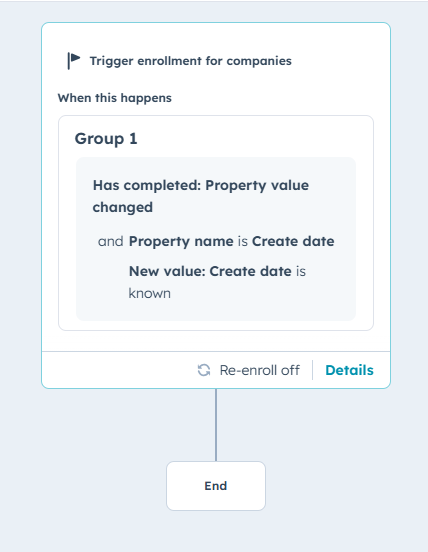
- Set Your Trigger
Click Set up triggers.
Choose Company properties → Create date → Is known. (This means the workflow runs whenever a new company is added).
- Add the AI Action
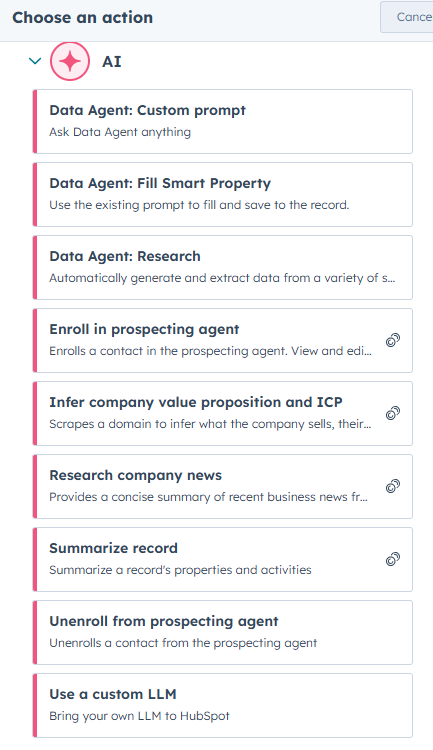
Click the x to add an action.
Open the AI Tab

Select the action labeled Data Agent: Custom Prompt
Phase 3: Configure the AI Agent (The Important Part)
This is the exact setup to make the hack work.
- Configure the Inputs (What the AI Reads) In the action panel, look for Property to include with prompt. You need to give the AI data to read.
- Click the dropdown and select:
- Name
- Company Domain Name (Website)
- Description
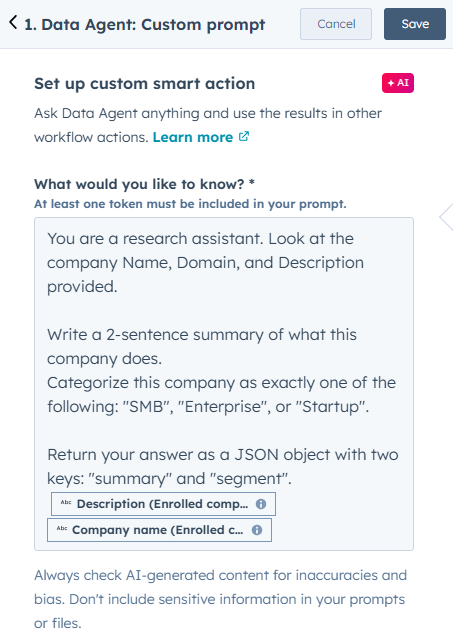
- Write the Prompt (The Brains) Copy and paste this exact text into the Prompt box:
You are a research assistant. Look at the company Name, Domain, and Description provided.
- Write a 2-sentence summary of what this company does.
- Categorize this company as exactly one of the following: "SMB", "Enterprise", or "Startup".
Return your answer as a JSON object with two keys: "summary" and "segment".
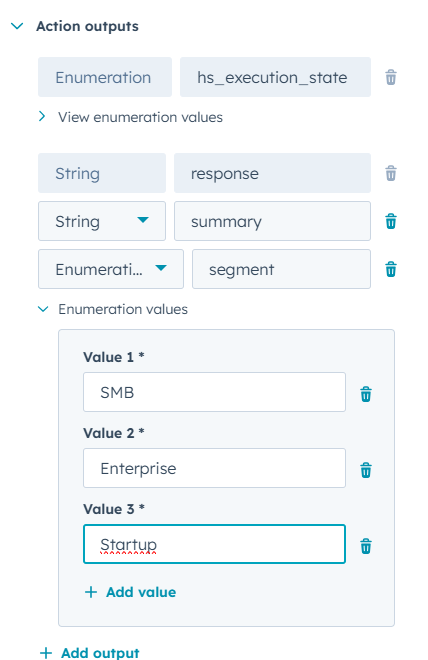
- Define the Outputs (The Connection) Scroll down to the Action Output section. This is where you tell HubSpot that the AI is returning two specific pieces of data ("keys").
- Output 1:
- Click Add output.
- Key: summary (Must be lowercase, matching your prompt).
- Type: Select String.
- Output 2:
- Click Add output.
- Key: Type segment (Must be lowercase).
- Type: Select Enumeration (this means a list/dropdown).
- Add value: SMB.
- Add value: Enterprise.
- Add value: Startup.
Click Save on the action.
Phase 4: Save the Data to Your Properties
The AI has done the work, but now you need to save it into the properties you created in Phase 1.
- Add a "Copy Property" Action:
- Click the + directly under the AI action you just built.
- Search for and select Edit record.
- Map the Summary:
- Target Property: Select AI Research Summary (the custom property you made).
- Value to copy: Click into the field > Select Action outputs (from the Data Agent step) > Select summary.
- Map the Segment:
- Target Property: Select AI Segment.
- Value to copy: Click into the field > Select Action outputs > Select segment.
- Save the action.
Phase 5: Test It!
- Click Test in the top right corner.
- Select a real company from your CRM (pick one with a website domain).
- Run the test.
- Check the "Action details" to see if the AI Research Summary and AI Segment properties were updated correctly.
Optional Addition: Chain multiple agents
Want deeper automation? Add another Run AI action after your branch: e.g., first agent enriches data, second agent generates a tailored outreach email using the enriched fields. The workflow passes data forward, allowing you to build multi-agent flows.
Summary of the Flow
- Trigger: New Company Created.
- Action: AI Agent reads the website and name.
- Result: AI decides if it's Enterprise or SMB and writes a summary.
- Final: Workflow sorts the company into the right sales pile based on the AI's decision.
3 Golden Rules for Success
- Match your Types: If your HubSpot property is a "Dropdown," make sure you tell the AI exactly which words it is allowed to pick (e.g., "SMB", "Enterprise"). If the AI invents a new word, the update will fail.
- Test with One Record: Before turning this on for everyone, click the "Test" button in the top right of the workflow builder. Pick a real company record and watch the logs to see if the AI fills the properties correctly.
- Watch Your Credits: AI actions use HubSpot credits. This is usually fine for normal volume, but don't run this on a list of 100,000 old contacts all at once without checking your limits!
Written by: Becky Murphy - Managing Director