The Solution: Colored Deal Tags. These are visual badges that appear directly on the deal cards in your Board View. They act as instant "Check Engine" lights for your sales reps and managers.
Why this works: It removes the need to run reports to find "bad" deals. If a deal card has a red tag, it needs immediate attention.
Phase 1: Define Your "Red Flags"
Before opening HubSpot, decide which criteria indicate an unhealthy deal in your specific sales process. Here are the three most common "Health Checks":
-
🔴 Overdue: The deal is still open, but the Close Date is in the past.
-
⚠️ Stale / Ghosted: No activity (notes, calls, emails) has occurred in the last 14+ days.
-
⚪️ No Momentum: The "Next Step" field is empty.
Phase 2: The Setup (Step-by-Step)
Follow these steps to configure the tags directly in your pipeline settings.
Step 1: Navigate to Pipeline Settings
-
Click the Settings icon (⚙️) in the main navigation bar.
-
In the left sidebar, navigate to Objects > Deals.
-
Click on the Pipelines tab.
-
Ensure the correct pipeline is selected in the "Select a pipeline" dropdown.
Step 2: Access Board Customisation
-
Click the tab labelled Customise board and card view.
-
Find the section labelled Deal Tags (usually near the bottom of the list).
-
Click Add tag.
Step 3: Create the "Overdue" Tag
This identifies deals that should have closed already.
-
Name: Enter
Overdue Close Date. -
Colour: Select Red (indicates urgency).
-
Apply tag to: Select "Specific deals based on filters."
-
Set Filter Logic:
-
Click + Add filter.
-
Search for Close Date.
-
Select is before today.
-
(Crucial Step) Click AND.
-
Search for Deal Stage.
-
Select is none of Closed Won / Closed Lost.
-
-
Click Save.
Step 4: Create the "Stale" Tag
This identifies deals where the prospect has gone quiet.
-
Click Add tag again.
-
Name: Enter
Stale / Inactive. -
Colour: Select Yellow or Orange (indicates warning).
-
Apply tag to: Select "Specific deals based on filters."
-
Set Filter Logic:
-
Click + Add filter.
-
Search for Last Activity Date.
-
Select is more than [14] days ago (adjust the number of days based on your sales cycle).
-
(Optional) Add an AND filter to exclude "Closed Won/Lost" stages if you keep closed deals on the board.
-
-
Click Save.
Step 5: Create the "No Next Step" Tag
This identifies deals that are drifting without a plan.
-
Click Add tag again.
-
Name: Enter
Missing Next Step. -
Colour: Select Grey or Blue.
-
Apply tag to: Select "Specific deals based on filters."
-
Set Filter Logic:
-
Click + Add filter.
-
Search for Next Step.
-
Select is unknown.
-
-
Click Save.
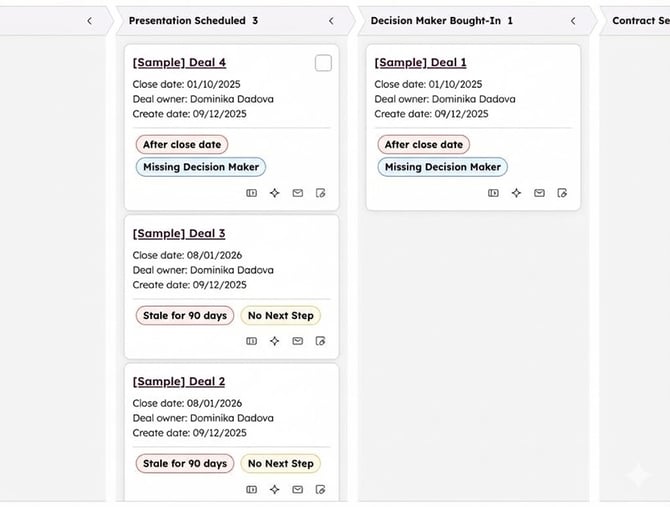
Phase 3: The Rollout (Manager's Playbook)
Now that the tags are live, they will instantly appear on your Deal Board view. However, a tool is only as good as the process behind it.
1. The "Clean Your Room" Meeting. Hold a 15-minute standup with your sales team. Show them the Board View.
-
The Rule: "If your deal has a Red Tag, fix the data or move the deal to 'Closed Lost' by Friday."
2. Weekly Pipeline Reviews. When conducting 1:1s, filter the view by the rep.
-
Don't ask "How is this deal going?"
-
Instead, ask: "I see this deal has a Stale tag. Why haven't we spoken to them in two weeks?"
3. Forecasting Accuracy. Instruct sales leadership to exclude any deals with an "Overdue" tag from their committed revenue forecast until the date is updated