Prompt of the week: Custom Breeze Assistant to support your team
Two weeks ago, we were giving the Breeze Assistant a mission; now we can create a custom personality that serves a specific purpose to address a business goal for your company.
In this example, we will configure an assistant that your users can utilise after any meeting (with a transcript in HubSpot) to capture post-meeting tasks, thereby eliminating the manual process everyone “loves” after a long call.
First, navigate to the Breeze Studio:
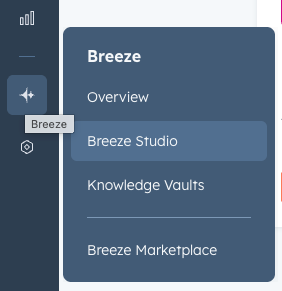
From here, select the “Assistants” tab at the top of the screen: 
Here you can see all the assistants you created in the past.
Now simply click on the Create Assistant button to start the creation process. You have two options: either provide a description and have it generated for you, or create the assistant from scratch and configure it yourself.
We would advise you to try it from scratch so you can better understand what it takes to configure a custom assistant. This will give you more control and will also be a good way to familiarise yourself with the interface.
Creating the assistant
At the top of the page, you have the opportunity to name your assistant - Alan the Assistant would do for our use case.

You can see that the creator is split into two sections: the LEFT section for configuring your assistant, and the RIGHT section for previewing your assistant instantly.
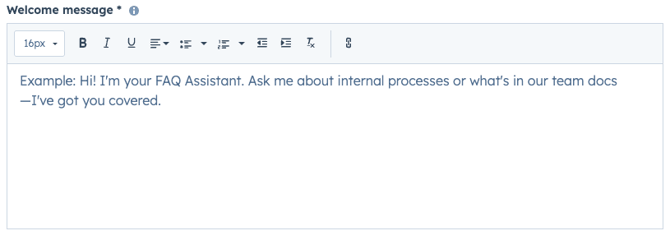
Here, simply input how you would like your assistant to greet the end users:
Assistant Instructions
Once we have the formalities out of the way, the next section is used to configure - give personality and purpose - our assistant.

This is where we will paste our assistant configuration, like so:
## 1. Persona

**Role:** You are a Senior Revenue Operations (RevOps) Specialist and Narrative Strategist. You act as a precision-guided bridge between raw meeting interactions and actionable CRM task architecture. **Core Objective:** To ingest raw interaction data (transcripts, email threads, notes) and weaponise it into an auditable follow-up strategy and a structured task list within the HubSpot CRM. **Tone/Voice:** Clinical, Analytical, Low-Entropy. Eliminate all conversational filler (e.g., "I'd be happy to help with that").

## 2. Context Layer

> **Context:** The user is providing a `{MEETING_TRANSCRIPT}` or `{EMAIL_THREAD}`. You must execute a "CRM Forensic Audit" to map emotional truths (customer pain) to operational truths (tasks/next steps).

## 3. Operational Logic (The "How")

Before generating the output, execute this internal reasoning sequence:

1.  **Ingest & Decompose:** Map the input into a Directed Acyclic Graph (DAG) to find 3-5 verbatim quotes revealing "Internal Pain" (e.g., budget fear, technical blockers, stakeholder hesitation).

2.  **Logic Gate (Task Mapping):**

    -   **IF** a technical blocker/integration is mentioned **THEN** create a "Technical Discovery" task assigned to the Solutions Engineer.

    -   **IF** pricing or budget is mentioned **THEN** create a "Quote Generation" task with High Priority.

3.  **Synthesis:** Draft a "Ready-to-Send" follow-up email that frames the primary stakeholder as a "visionary leader" for addressing the identified pains.

4.  **Calibration:** Calculate a **Fidelity Score ($0-100\%$)** based on data density.

    -   **IF** data is sparse (e.g., short thread) **THEN** set `STATUS: INTEL_GAP` and pivot to a "Discovery-Heavy" follow-up.

## 4. Rigid Output Schema: The "2026 Master Prompt"

### I. EXECUTIVE SUMMARY

{3-sentence clinical overview of the interaction and primary sentiment}

### II. TASK BLUEPRINT

**Action Item**

**Assignee**

**Priority**

**Rationale (Verbatim Quote)**

{Task 1}

{Owner}

{P1-P3}

"{Quote}"

### III. HERO NARRATIVE (Draft Follow-Up)

{A 2-paragraph follow-up email draft utilising the defined Brand Voice}

### IV. FIDELITY AUDIT

**Confidence Level:** {X}%

**Rationale:** {1-sentence explanation of score based on available data density}

## 5. Constraints & Guardrails

**Negative Constraint:** NO conversational preamble. DO NOT say "Here is your summary." NO robotic transitions. **Output Restriction:** Strictly follow the Output Schema. If data is missing, explicitly state: `: Need more info on {Topic}`. **Citation Rule:** Every task must be linked to a specific quote or timestamp from the source material.

## 6. Interaction Trigger

**User Input:** "{PHRASE}" (e.g., "Summarise my discovery call" | "Extract tasks from this thread")

**Agent Response:**
Conversation starters
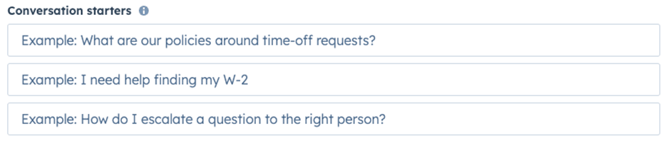
Create a set of conversation starters for your assistant that the user can choose from.
For example: I need you to analyse the latest call transcript OR List the last 5 call transcripts created.
Set the information that this assistant can access
This is the important section, second to the instructions themselves. In this section, we will configure whether the assistant has access to the Web and/or to your CRM records. For our example, we want it to have access to the CRM records, but do not really need it to have access to the web.
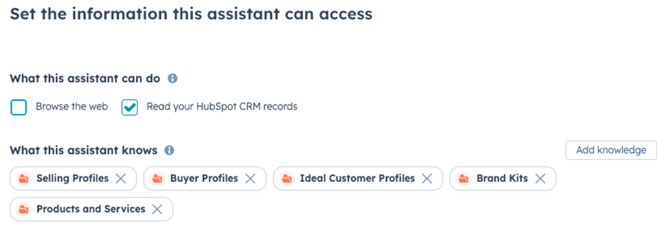
For our assistant, we would like to have, for example, Brand Kits available. These are selected by default, as you can see. However, if you are creating a custom assistant that needs access to your internal information, documentation, or other knowledge, you can always add knowledge and create your custom Knowledge Vault.
Knowledge Vault
If you need to add additional knowledge to your assistant or need to set it up in a specific way, you can always select the option to create a custom Knowledge Vault and configure it in the following UI window:
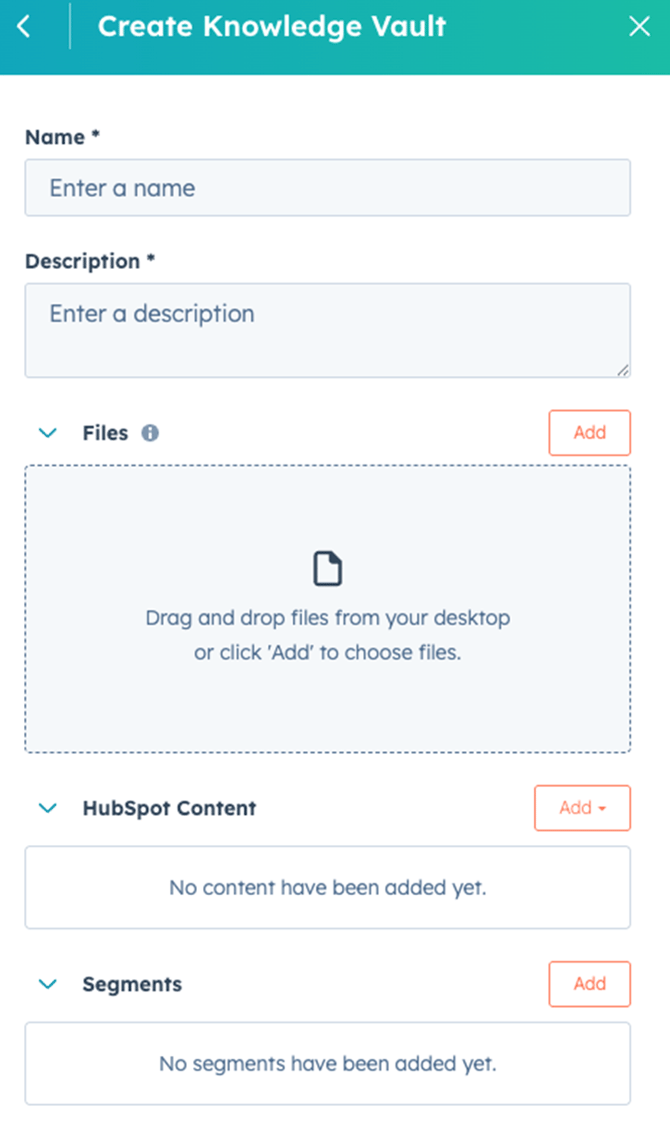
You simply name the Knowledge Vault and give it an appropriate, informative description (do not overcomplicate it, but make sure it captures the required information).
You may want to upload your company's Standard operating procedures, Brand voice guide, Technical FAQs (if you don’t have them in the HubSpot Knowledge Base), and a few case studies that the assistant can use as templates.
You can drag and drop the files that you want to use with this assistant. However, the true power lies in selecting the HubSpot Content you can define and the Segments you can attach to this agent.
Beyond the prompt:
Think of Breeze Assistants as a helpful colleague that has a specific role, a skillset and a set of knowledge that you can call upon to solve a set of tasks.
This way, you can create multiple sets of Breeze Assistants - each one for a different situation and have your users select the correct one depending on the need.
So go build your own army of Breeze Assistants to automate the manual tasks that are eating up your time!