The Solution: Smart Data Capture. This feature uses HubSpot’s AI to "listen" to your call transcripts, identify specific data points (like money, dates, or names), and queue them up for you. Instead of typing, you just click "Approve."
Here is the detailed, step-by-step guide:
Phase 1: The Pre-Requisites
Before the AI can work, it needs ears. You must ensure your calls are being recorded and transcribed.
-
Connect Your Phone/Video:
-
If using HubSpot Dialer: Ensure "Call Recording" is toggled ON in your calling settings.
-
If using Zoom/Microsoft Teams: Go to the App Marketplace, find the integration, and ensure "Sync cloud recordings" and "Transcribe recordings" are both checked.
-
-
Verify Permissions:
-
Ensure your users have a Sales Hub or Service Hub Professional/Enterprise seat, as this powers the Conversation Intelligence (CI) engine.
-
Phase 2: Configuration (Teaching the AI)
Now, we tell HubSpot which fields we want it to hunt for.
-
Navigate to Settings:
-
Click the Settings icon (⚙️) in the top navigation bar.
-
-
Go to AI:
-
In the left sidebar, navigate to Account Management> AI
-
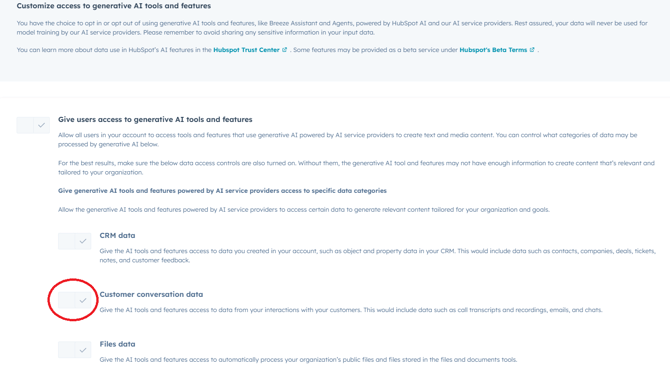
Look for a tab, or section labelled Customise access to generative AI tools and features
-
-
Turn it On:
-
Toggle the switch on for Customer conversation data.
-
-
Map Your Fields:
-
HubSpot will ask which Deal properties you want the AI to listen for.
-
Recommended Mappings:
-
Amount: The AI will listen for currency figures discussed in context of price/budget.
-
Close Date: The AI will listen for timelines (e.g., "We need this by Q3").
-
Next Step: The AI will listen for action items at the end of the call.
-
Competitor: (If you have a custom dropdown) The AI can listen for competitor names.
-
-
Phase 3: The "Lazy" Workflow (How to use it)
Here is what your sales reps need to do after a call.
-
Make the Call:
-
Record the call using the integrated dialer or Zoom.
-
-
Go to the Deal Record:
-
Navigate to the Deal (or Contact) associated with the call.
-
-
Check the "Activity" Timeline:
-
Find the call recording in the timeline.
-
You will see a section labelled AI Suggestions or Smart Capture.
-
-
One-Click Approval:
-
HubSpot will display: "We detected a potential budget of £50,000."
-
Click Approve (or the checkmark icon).
-
Done. The "Amount" field on the deal is now updated to £50,000 without you touching the keyboard.
-
Pro Tips for Success
-
Verbal Confirmation: Teach your reps to repeat numbers back to the client. (e.g., "Just to confirm, you are looking to get this live by September 1st, correct?"). This gives the AI a clean, clear audio signal to capture.
-
Don't Overload It: Start with the "Big 3": Amount, Close Date, and Next Step. If you try to map 20 fields at once, the suggestions can get noisy.
-
Train the AI: If the AI suggests the wrong number, click Reject/Dismiss. This feedback loop helps the model improve accuracy for your specific team over time.
By Becky Brown