
Step-by-Step Instructions
Step 1: Make sure AI features are enabled
- Go to Settings → Account Management → AI → Access.
- Toggle on AI for your account if it’s not already.
⚡ Tip: Only Super Admins can change account‑level AI settings, so you may need to ask an admin to enable this
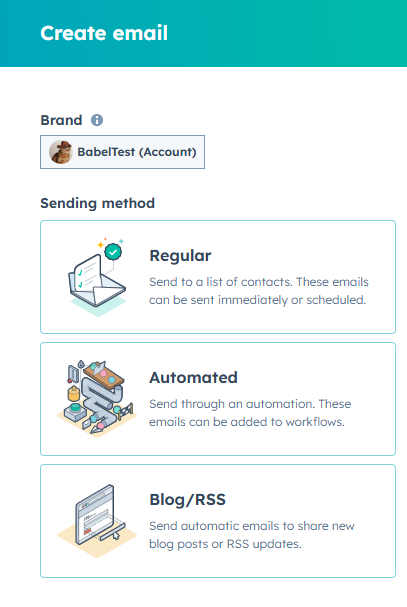
Step 2: Start a new email
- Navigate to Marketing → Email → Create email.
- Pick Regular or Automated, depending on your campaign needs.
Quick note: Regular emails are for one-off sends, Automated are for workflows or drip campaigns.
Step 3: Upload your HTML
- Under Create a new design, select Upload design.
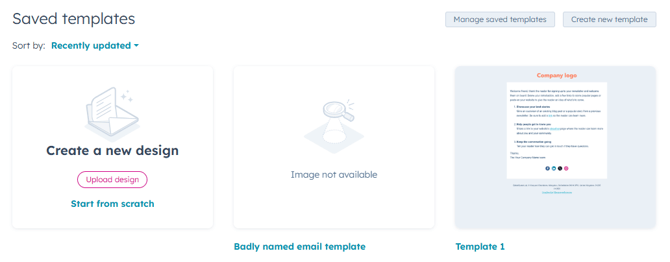
- Choose between:
- Upload a file → select your HTML file from your computer
- Paste HTML directly → copy-paste the code into the box
- Upload a file → select your HTML file from your computer
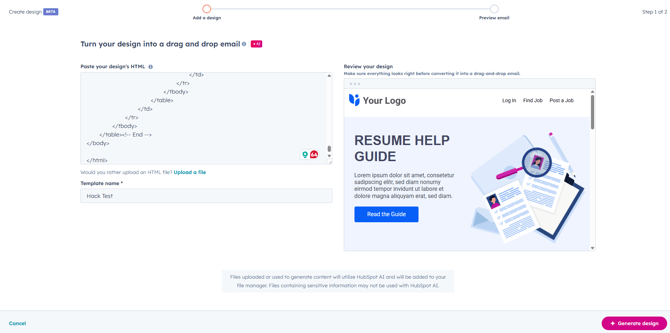
⚡ Tip: Double-check your images are hosted online or in HubSpot files to avoid broken links.
Step 4: Generate the design
- Give your email template a name.
- Hit Generate Design.
- Review the preview. HubSpot AI will translate the HTML into drag-and-drop blocks.
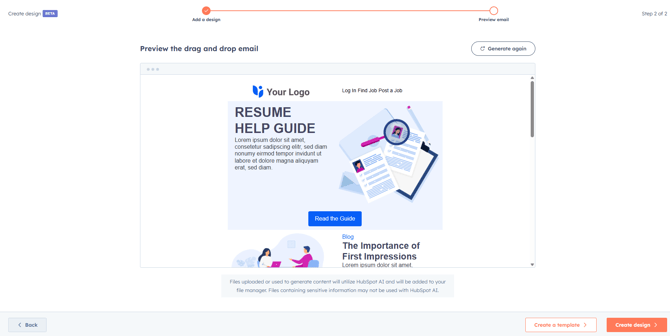
⚡ Tip: If anything looks off, click Generate again. AI might create slightly different block structures each time, and you can pick the cleanest version.
Step 5: Save or start editing
- Create a template → saves it for reuse across campaigns.
- Create design → opens the editor immediately for tweaks and sending.
⚡ Pro tip: Always save a template if you plan to use it multiple times. This keeps your workflow efficient and consistent.
Step 6: Tweak and test
- Adjust modules, spacing, and images directly in the drag-and-drop editor.
- Test your email by sending it or previewing it in HubSpot to check formatting across all devices and clients.
- Optional: Add personalisation tokens or smart content before sending.
Who can use this hack
- Marketing Pro and Marketing Enterprise users with AI access.
Bonus Tips & Tricks
- For complex HTML with embedded CSS, HubSpot’s AI may break some styles; always preview and manually tweak if needed.
- Keep your HTML clean — remove inline styles or scripts that aren’t supported in emails.
Written by: Becky Murphy - Managing Director, BabelQuest