
Step 1: Map the fields that cause the biggest headaches
Start with the usual suspects:
- First name / Last name
- Email address
- Job title
- Phone number
- City / Company name
- Industry / Department
Spot patterns like all-caps emails, inconsistent job title casing, or phone numbers full of symbols.
Step 2: Build your “Master Data Cleanup” workflow
- Go to Automation → Workflows.
- Create a Contact-based workflow from scratch.
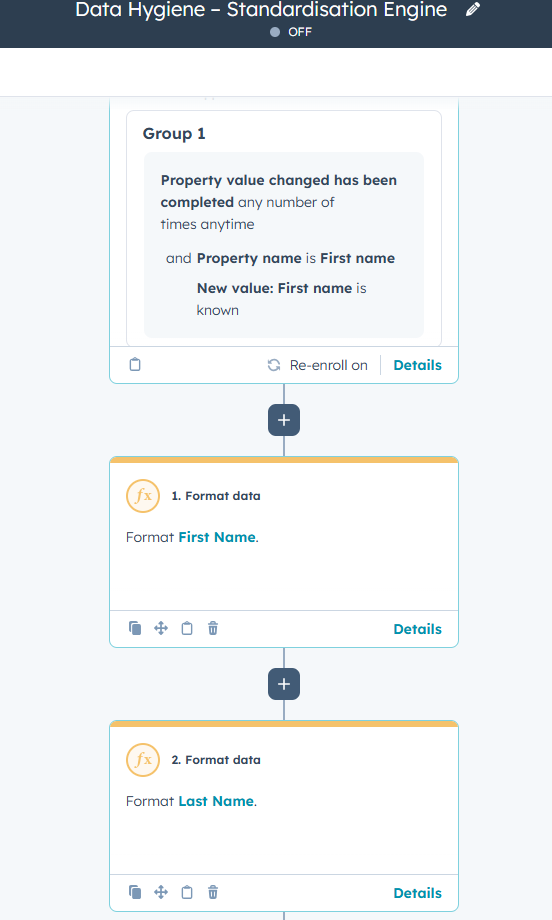
- Name it something like: Data Hygiene – Standardisation Engine.
This will be the single workflow that keeps everything tidy.
Step 3: Add smart enrollment triggers
Trigger on:
- Property is known → choose each field you want to fix.
Turn on: - Re-enroll when any of these fields change.
That means any new update — a form fill, a manual edit, an import — gets automatically cleaned.
Step 4: Use “Format Data” actions to auto-correct fields
This is where the magic happens. Add a Format data action for each field you want to improve.
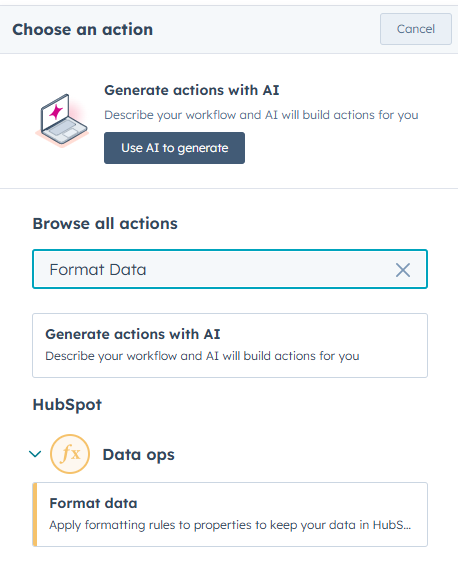
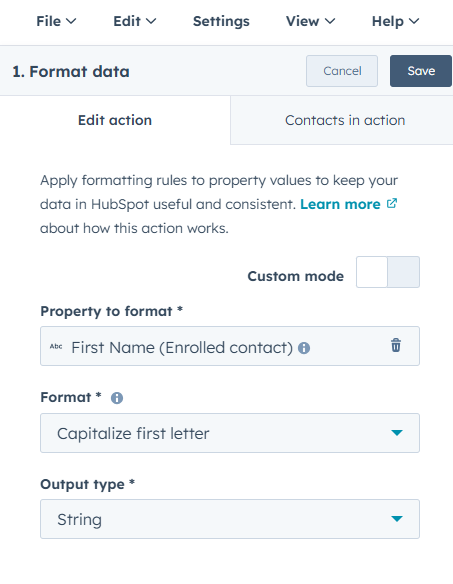
Recommended settings:
- First name → Capitalise first letter
- Last name → Capitalise first letter
- Email → Lowercase
- Job title → Title case
- City → Capitalise each word
- Phone number → Remove non-numeric characters
You’re essentially building a real-time data polishing machine.
Step 5: Test on a handful of messy contacts
Manually enroll test contacts with:
- all caps emails
- lowercase job titles
- unformatted phone numbers
Check the before/after values to make sure everything behaves as expected.
Step 6: Turn it on — and let it run continuously
Once published, this workflow becomes your silent guardian.
Every time a property changes, the workflow automatically fixes it in seconds.
Step 7: Build your Data Health Dashboard
Make improvements visible and track progress as your workflows clean up your CRM.
1. Set up workflows to flag issues
Because HubSpot lists can’t directly detect formatting problems, use workflows to create flag properties for each issue:
-
Create custom contact properties – Examples: “First Name Capitalized?”, “Email Lowercase?”, “Job Title Proper Case?”, “Phone Valid?”, “Lifecycle Stage Missing?” (Yes/No)
-
Build a workflow for each property – Workflow logic checks the relevant property:
-
First Name Capitalized? → Check if the first letter is uppercase. Flag No if not.
-
Email Lowercase? → Flag No if email contains uppercase letters.
-
Job Title Proper Case? → Flag No if job title contains lowercase letters where it shouldn’t.
-
Phone Valid? → Flag No if phone contains symbols.
-
Lifecycle Stage Missing? → Flag Yes if empty.
2. Build lists based on flagged properties
-
Navigate to Contacts > Lists > Create list
-
Build one active list per dirty data condition, filtering for contacts where the flag property = “Yes” or “No” as appropriate
-
Name lists clearly (e.g., “First Name Not Capitalized”) so they’re easy to track in reports
3. Turn lists into reports
-
Go to Reports > Reports > Create custom report
-
Choose Single object report > Contacts
-
Filter by List membership to include only contacts flagged for each condition
-
Metrics to track:
-
Current number of records with issues
-
Trendlines showing improvements as workflows clean the data
-
4. Build a Data Health Dashboard
-
Go to Reports > Dashboards > Create dashboard
-
Name it “Data Health Monitor”
-
Add the following:
-
Top data errors – which issues are most common
-
Improvement over time – trendlines showing workflow impact
-
Workflow-completed actions – how many records have been fixed
-
Scorecards for clean vs. dirty data – overall CRM health at a glance
Step 8: Review and iterate weekly
As new errors appear, add new formatting rules.
As old issues disappear, retire rules you no longer need.
Your CRM gradually becomes cleaner, more standardised, and easier to trust.

By Becky Brown, Marketing Manager
